
WiFi Setup
Sometimes it is not possible to use the Ethernet cable to connect the EAGLE to your router. For instance, if the router is too far away from your utility meter, it may be beyond the range of the meter’s Zigbee radio. Or, there may not be an available port on your router. In these cases, you may choose to use the internal WiFi radio in the EAGLE 3 to connect to your router.
Follow these steps to connect your EAGLE to your WiFi network.
Steps to connect your EAGLE 3 to Wi-Fi:
- Disable Auto-Join or Connect automatically on your phone or computer for your current Wi-Fi network. This prevents your device from leaving the EAGLE’s temporary Wi-Fi network during setup.
- Press the top button once to enable the Wi-Fi radio and set it to AP mode. Wait for about 1 minute. The yellow cloud LED will begin to blink.
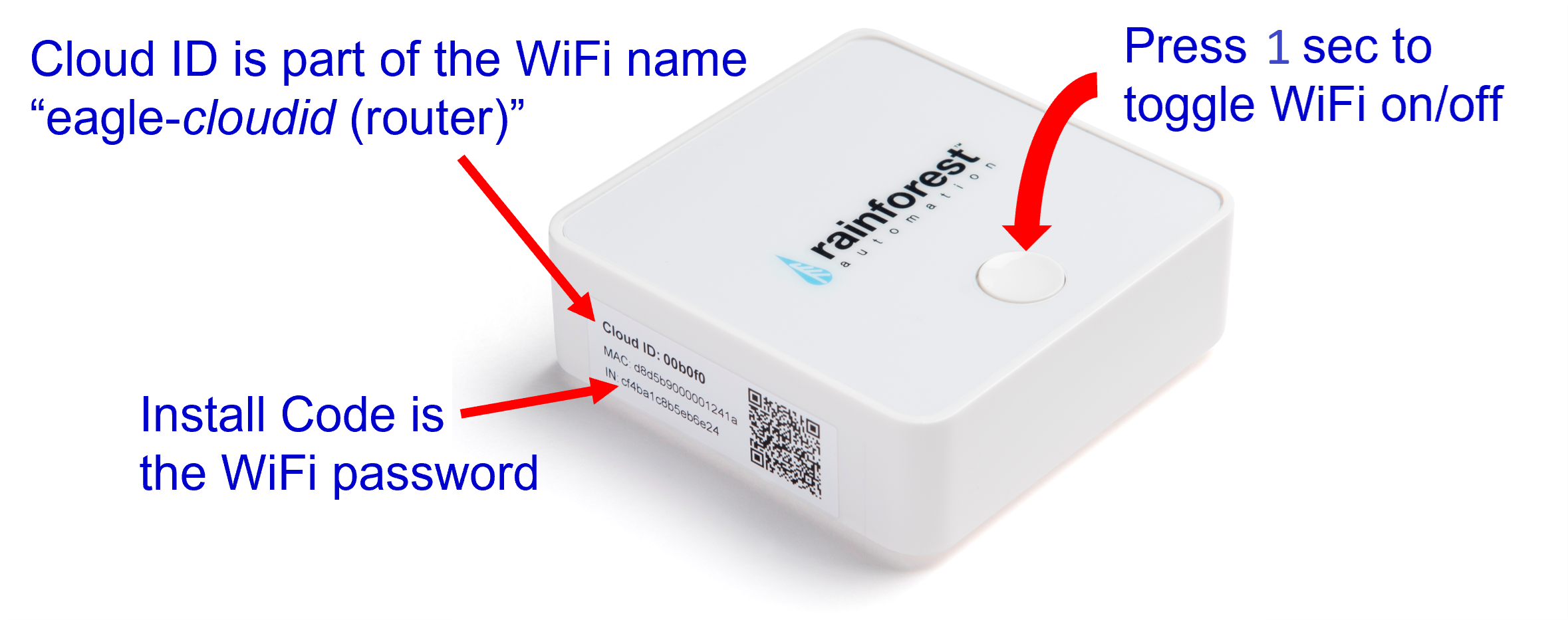
- On your phone or computer, scan for available Wi-Fi networks. You should see “eagle-xxxxxx (router)”, where xxxxxx is the 6-digit Cloud ID printed on the label.
- Connect to the eagle-xxxxxx (router) network using the Install Code (IN) as the password (16-digit hexadecimal number on the device label).
- Open your browser and go to 192.168.7.1.
- Log in with your Cloud ID as the username and Install Code as the password.
- Click Setup Wi-Fi if the loading screen doesn’t appear automatically.
- Select your Wi-Fi network, enter your password, and join the network.
- The screen will display “Applying changes,” and the EAGLE Wi-Fi network will disappear. Wait about one minute for the connection to complete, and close the tab.
- Verify the connection:
- The Yellow Cloud LED should be steady on within 1–2 minutes. More information about LED behaviour can be found here: LED Guide
Resetting WiFi:
If you need to reset your WiFi configuration, press and hold the top button:
- 5–6 seconds: Sets the device back to AP mode and turns WiFi off. Use this if you need to reconfigure your WiFi network.
- 20–21 seconds: Resets all network configurations to default and turns WiFi off. Use this if you want to completely clear all network settings.
⚡ Note:
If your EAGLE does not connect or the Yellow Cloud LED continues blinking, it’s possible an incorrect Wi-Fi password was entered. Press and hold the top button for 5 seconds, wait 1 minute, then press it again for 1 second and repeat the steps above.
💡Tip:
Keep your EAGLE 3 powered on and connected to the internet throughout this process. This ensures it can receive provisioning updates as soon as the utility enables communication.